
BakkesMod on Linux: Train, Customize & Master Rocket League
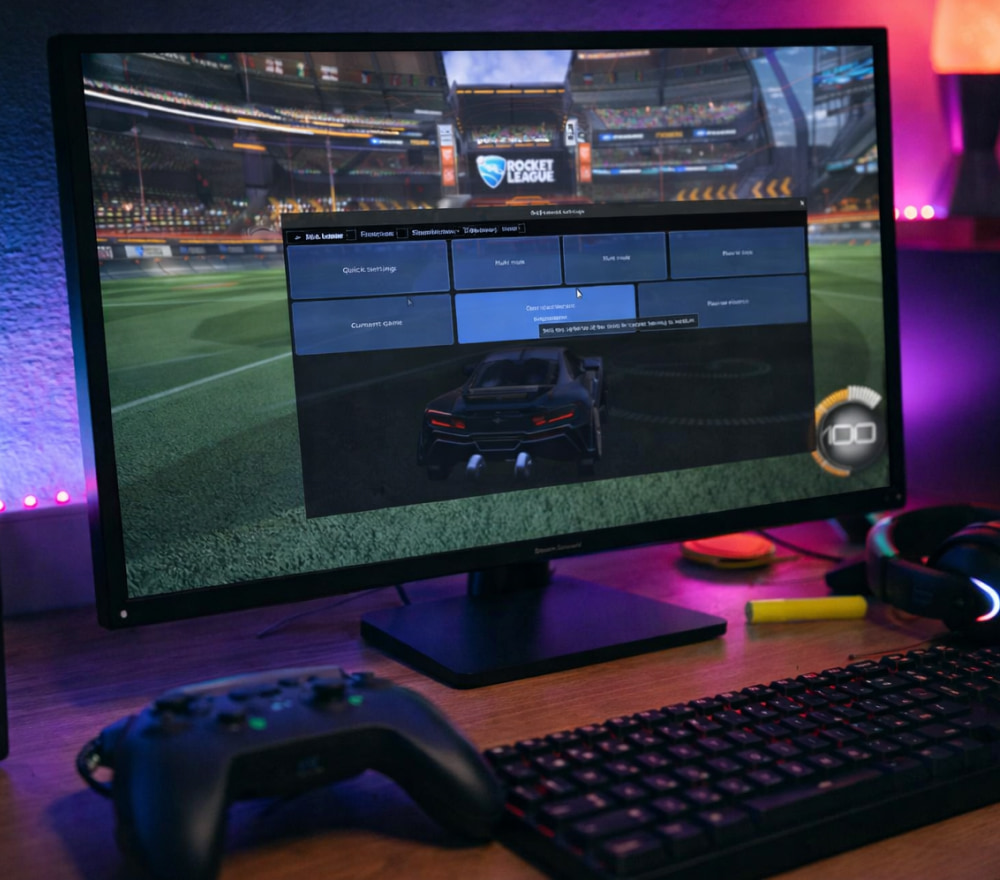
Download & Play BakkesMod on Windows PC
Install NowComplete Guide to Running BakkesMod with Rocket League on Linux
Many competitive Rocket League players want a flexible setup that combines powerful training tools with the stability of a desktop operating system, so they look for ways to use BakkesMod on Linux today for both casual play and high-level practice.
This guide explains how to prepare your system, set up compatibility layers like Wine or Proton, safely install the mod, and fix common issues without constantly switching back to Windows.
Why Use a BakkesMod on Linux
The mod extends the base game with advanced training scenarios, plugin support, and precise camera and control tweaks that help you refine mechanics such as air dribbles, flip resets, and fast recoveries.
When configured correctly, Linux BakkesMod can feel almost identical to the Windows setup while taking full advantage of your preferred distribution and desktop environment.
- Access custom training scripts for repeatable mechanical drills.
- Use community plugins to visualize hitboxes, boost paths, or rotations.
- Tune camera and sensitivity to match pro player configurations.
- Track mistakes and habits over long sessions using built-in tools.
Tip: Before you start experimenting with plugins, back up your Rocket League configuration files so you can revert quickly if a plugin causes problems.
System Requirements and Preparing Your Linux Environment
For smooth gameplay and stable overlays, you should prepare the system by updating your kernel, GPU drivers, and compatibility tools such as Wine, Proton, and Lutris.
| Component | Recommendation |
|---|---|
| Distribution | Recent versions of Ubuntu, Pop!_OS, Manjaro, Fedora, or similar with a modern kernel. |
| GPU drivers | Official NVIDIA drivers or up-to-date Mesa drivers for AMD and Intel GPUs. |
| Steam / Proton | Latest Steam client and Proton Experimental or a current Proton-GE build. |
| Wine / Lutris | Wine-Staging builds managed via Lutris for fine-grained control over prefixes. |
Step-by-Step Setup with Wine or Proton
Before you install BakkesMod on Linux through Wine or Proton, make sure your graphics stack is updated and that Rocket League already runs smoothly under your chosen compatibility layer.
- Install or update Steam and confirm that Rocket League is in your library and launches correctly.
- Enable Steam Play for all titles and assign a suitable Proton version specifically to Rocket League.
- Create a dedicated Wine prefix or use the Proton prefix associated with the game to isolate the mod from other software.
- Run the mod installer inside that prefix and point it to the Rocket League executable when asked.
- Check that the injection hook is configured for the correct executable path and game version.
- Start the game from Steam and verify that the in-game overlay appears and responds to its default hotkey.
If the overlay fails to appear, verify that you are launching Rocket League from the same prefix where the mod was installed and that no other tools are blocking injection.
Safe Download Sources and Verification
For maximum security and stability, start your BakkesMod for Linux download from our fan website or a well-known community resource rather than from random file-sharing sites.
To avoid corrupted installers and hidden malware, always download BakkesMod for Linux to an isolated folder inside your Wine or Proton prefix and verify checksums whenever they are provided.
- Double-check the site URL to avoid phishing clones that imitate the page.
- Compare the checksum of the installer with the hash published by the project maintainers.
- Store the installer in a clearly named folder so you can easily rerun it after future updates.
- Run the installer with normal user permissions, only escalating if the documentation explicitly requires it.
Wine vs Proton: Which Works Better for You
| Aspect | Wine / Lutris | Steam Proton |
|---|---|---|
| Flexibility | Full control over prefixes, libraries, and environment variables. | Tight integration with Steam, fewer manual tweaks required. |
| Ease of use | Best suited for users comfortable with Wine configuration. | Ideal for most players who prefer a simple point-and-click setup. |
| Stability | Can vary depending on Wine version and per-title tweaks. | Often more stable thanks to regular updates from Valve. |
| Updates | Managed manually or through Lutris runners and scripts. | Delivered automatically with Steam client updates. |
Common Issues and How to Fix Them
If you encounter injection errors or crashes on startup, a clean BakkesMod on Linux install in a fresh prefix often resolves conflicts caused by leftover files, outdated libraries, or broken hooks.
- White or black screen on launch: disable third-party overlays and check your game launch options.
- Overlay not attaching: confirm that the executable path in the mod configuration matches the Proton or Wine path.
- Crashes when enabling plugins: temporarily disable all plugins and re-enable them one by one to find the culprit.
- Noticeable FPS drops: reduce in-game graphics settings and turn off non-essential visual plugins in the overlay.
Performance Tuning and Quality-of-Life Tips
For a smooth ranked experience, you need to balance overlay features, plugin load, and graphical quality so that your system can maintain a consistent frame rate during long sessions.
- Lock your frame rate to a level your GPU can reliably maintain to minimize input lag.
- Rebind mod hotkeys to combinations that do not overlap with Rocket League controls or system shortcuts.
- Periodically clear the Proton or Wine cache if you notice growing stutter or random micro-freezes.
- Create separate configuration profiles for training, casual, and competitive play styles.
Staying Stable Through Game and Mod Updates
Updates to Rocket League or the mod can introduce temporary incompatibilities, so it is wise to keep backup configurations and a simple rollback plan ready before major patches go live.
- Copy your configuration and plugin folders before installing new versions of the mod.
- Read changelogs so you know about new dependencies, removed features, or known issues.
- Test big changes in a secondary prefix, keeping your main setup untouched until you are satisfied.
Conclusion
With the right preparation and a careful approach to compatibility tools, you can enjoy a powerful training and customization environment for Rocket League on your favorite Linux distribution.
By combining trusted download sources, sensible prefix management, and a bit of troubleshooting knowledge, you can build a reliable setup that lets you focus on improving your gameplay instead of fighting with your system.