
Install BakkesMod: Full Setup Guide for Training, Overlays & Plugins
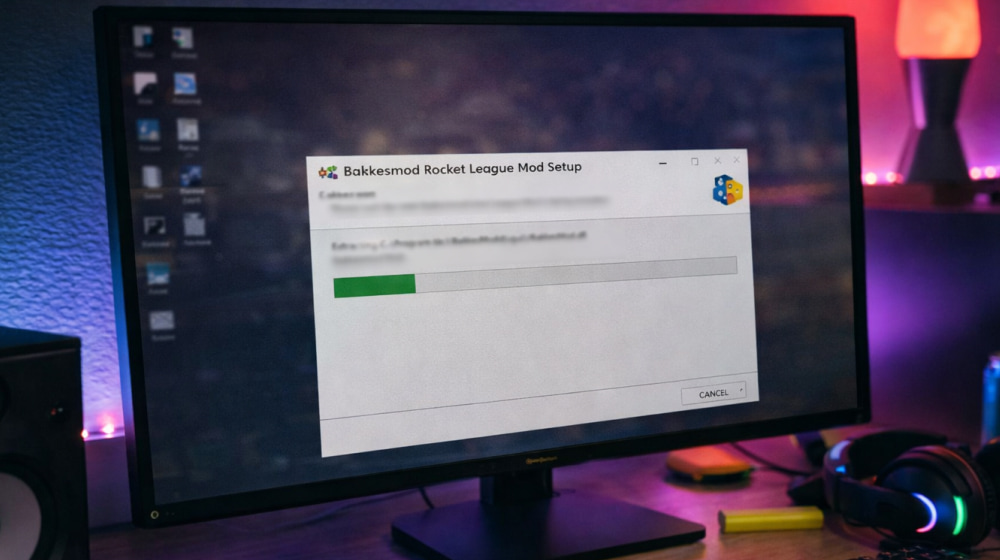
Download & Play BakkesMod on Windows PC
Install NowComplete BakkesMod Setup Guide for Rocket League Players
BakkesMod is a powerful modding tool for Rocket League that adds training enhancements, visual customization, plugin support and a lot of quality-of-life tweaks for both casual and competitive players.
This guide walks you through everything from basic preparation to first launch, so you can get the mod running reliably and avoid common installation mistakes that cause crashes or injection errors.
What BakkesMod Actually Does
Once configured correctly, the mod can adjust car cosmetics only you can see, spawn training scenarios on demand, show extra overlays and load community plugins from sites such as BakkesPlugins to extend Rocket League far beyond the default options.
- Custom training tools and freeplay controls
- Cosmetic changes visible locally on your client
- Support for dozens of community plugins and overlays
- Extra information overlays to support coaching and analysis
Tip: treat BakkesMod as a toolbox rather than a single feature; the value comes from combining small tweaks into your own perfect Rocket League setup.
Preparing Your System Before Installation
Before you install BakkesMod, close Rocket League, disable any unnecessary overlays and make sure your game launches normally from Steam or the Epic Games Launcher without crashes.
To minimize problems during setup, check these basics first:
- Rocket League is installed on Windows and opens without error.
- You have administrator rights on the account you are using.
- Real-time antivirus is not blocking new executables from running.
- The game is not running while you work through the setup steps.
Because the mod is community-driven and supported mainly by donations, you can install BakkesMod for free from the official website without entering any license key or subscription details.
Downloading the Tool Safely
Always download the setup program from the official BakkesMod download page rather than from third-party mirrors, because only the official source guarantees you are getting the current and unmodified build.
- Open your browser and go to our fan website.
- Navigate to the download section for the latest Windows version.
- Save the setup file to a folder you can easily find, such as Downloads.
When you start the setup wizard, a typical BakkesMod install takes only a few minutes if you follow each screen carefully and avoid changing advanced options unless you know exactly what they do.
Running the Setup Wizard Step by Step
Locate the downloaded executable in your Downloads folder, right-click it and choose to run it as administrator so Windows allows the mod to hook correctly into the Rocket League process later on.
When you run the BakkesMod installer, always verify that the Rocket League installation path shown in the wizard matches the actual location of your game files on your PC.
During the final screen of the wizard, pay attention to any prompts about launching the tool automatically with Rocket League, because these options determine whether the mod injects every time you start the game or only when you open it manually.
At the end of the BakkesMod installation, you should see a confirmation message and a new shortcut created either on your desktop or inside the Start Menu for quick access.
First Launch With Rocket League
After setup completes, start the mod using the new shortcut and then open Rocket League so the injector can attach to the game process in the background and load its features.
- Start the mod tool and wait a few seconds for it to initialize.
- Launch Rocket League from Steam or Epic as you normally would.
- Watch for a small status window indicating that injection has succeeded.
- Once you reach the main menu, press F2 to open the BakkesMod menu in-game.
When the in-game menu opens successfully, you can begin exploring tabs for freeplay, item customization, plugins and other options to tailor the experience to your playstyle.
If the overlay does not appear, check that Rocket League is running in Windowed or Borderless Windowed mode, because some full-screen configurations or overlays from other apps can interfere with how the mod draws its interface.
Quick Configuration Checklist
A short checklist makes it easier to confirm that everything is working as expected after the initial setup:
| Step | What to Do | What You Should See |
|---|---|---|
| 1 | Launch the mod tool before starting Rocket League. | A small status window showing that the injector is waiting for the game. |
| 2 | Start Rocket League from your usual launcher. | A notification that the mod has injected successfully into the game. |
| 3 | Press F2 on the main menu or in freeplay. | The main configuration window with tabs for items, freeplay, plugins and more. |
| 4 | Enable a simple feature such as showing a boost meter overlay. | Visible changes in-game confirming that settings are applied correctly. |
If you prefer a concise overview instead of long explanations, the steps in this table show every action you need to install BakkesMod on PC and confirm that it hooks properly before you jump into matches.
Working With Plugins and Extra Features
Once the base tool is stable, you can extend it by installing community plugins and custom maps that integrate directly with the mod and add advanced training modes, statistics overlays and cosmetic options.
- Browse popular plugins by category such as training, UI or cosmetics.
- Read plugin descriptions carefully to understand required dependencies.
- Restart both the mod and Rocket League after adding or removing plugins.
- Disable problematic plugins one by one if you see new errors after installing them.
Troubleshooting Common Problems
If Rocket League closes immediately after launch or the injection window reports an error, start by updating graphics drivers, verifying your game files through the launcher and temporarily turning off aggressive antivirus features that may block the injector.
Should the in-game overlay refuse to open, test Windowed or Borderless fullscreen mode, turn off overlays from apps such as Discord or GeForce Experience and confirm that no conflicting mods are running at the same time.
For persistent issues, checking community forums, plugin documentation and recent guides can be extremely helpful, because changes to Rocket League updates or Windows security features sometimes require small adjustments to how you configure the mod.